First video walkthrough · Updated October 4, 2026
Hotel Lobby AI video tutorial
Turn two separate photos into an original two-person singing or rap-style stage clip. Follow the input-to-download workflow below for a friends’ duo, a couples’ performance or a short social video. The photos and playable clip show a recorded generation case; the instructions explain how to start your own request.
1Prepare one photo for each person
Upload one clear portrait into each reference slot. Use consenting adults and photos you have permission to use. JPG, PNG and WebP files under 10 MB each are accepted. A sharp, evenly lit face with little occlusion is a useful starting point.
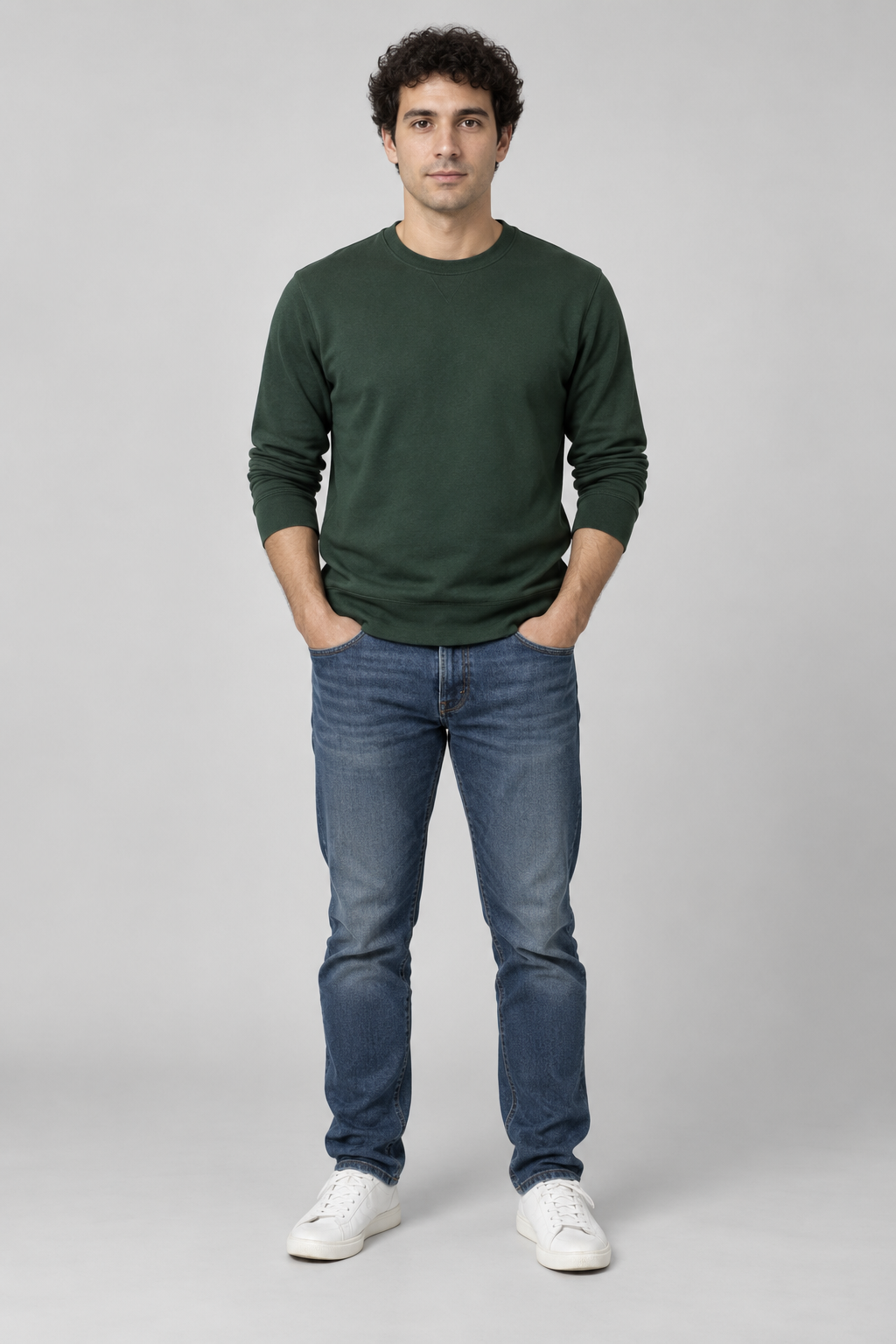
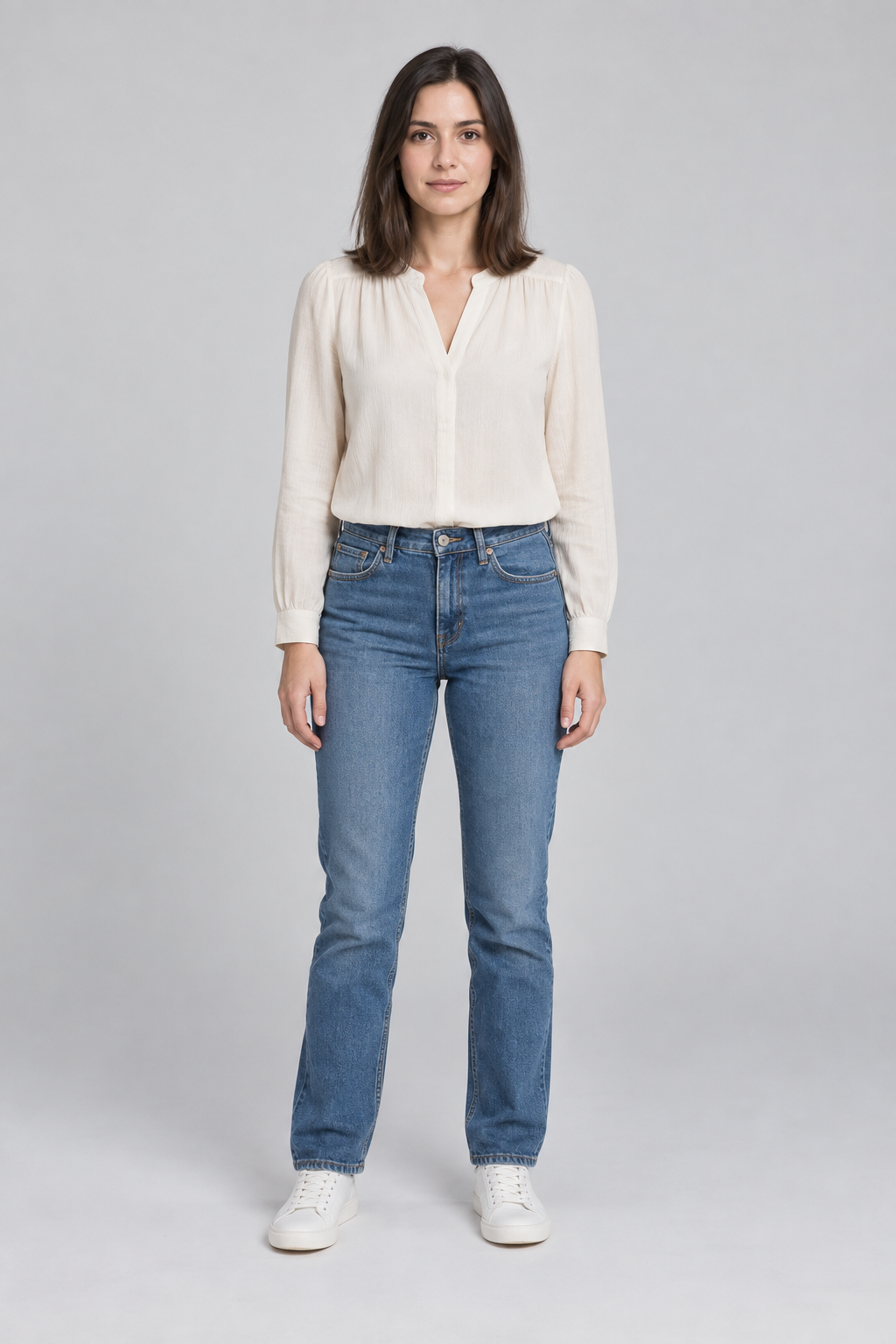
These are the source portraits for the output shown in step 4. Left/right placement is a prompt direction and can vary. For reference selection and identity troubleshooting, read Hotel Lobby AI with two photos.
2Choose a short starting recipe
In the studio, select the orange template and review the model, duration, resolution and aspect ratio. Here is an illustrative current recipe for a first vertical clip:
This recipe describes an available new request, not a verified record of the original example’s model or settings. At the current H3 768P rate, 5 seconds × 10 credits = 50 credits. Always check the displayed charge before submission. There is no advertised free generation allowance; see free access and budget options and pricing.
Add simple performance directions
Keep both reference performers visible on opposite sides of the hanging microphone. Let them trade the lead with restrained, distinct gestures in an original duo stage performance.
The template provides scene directions. Exact faces, positions, movement and stage details can vary between results.
3Submit once and follow the status
Sign in with Google or an email code before purchasing credits so you can return to the same account. If you use a guest account, securely save its recovery code. Review the references and credit charge, then submit your generation request.
Open My creations to follow the status. Processing depends on the model and queue; this tutorial does not promise a completion time. Submitted tasks continue on the server if you close the page. Return to the same account to check a pending request before submitting another.
Confirmed provider failures restore generation credits. A completed video with a creative mismatch is not the same as a provider failure. See the refund policy and account help.
4Watch the whole output
Preview your completed video in My creations. Check that both people remain visible, inspect faces during movement and camera changes, and listen to the audio if the file has an audio track.
If a face changes or one performer disappears, try clearer individual references and simpler directions that keep both people in frame. A new generation is a separate paid request. The full creation guide covers retry decisions and common failures.
5Download, check audio and edit for sharing
Download a copy you want to keep. Watch the saved file before sharing: inspect the full frame for unwanted artifacts or markings, and confirm what audio it contains. Permanent server availability is not guaranteed.
The MiniMax H3 request does not include an audio-generation setting. Seedance 2.5 requests generated audio from its provider, but the studio has no song-upload field, song selector or exact lyric-to-mouth timing controls. Do not assume the result contains a specific soundtrack or accurately matches a song’s lyrics.
Add music you have permission to use in your editor or the destination platform. Adding music does not make generated mouths match its lyrics. Trim the clip, choose a suitable crop and add your caption for TikTok, Reels or Shorts. No original commercial song is bundled, and this independent tool is not affiliated with Migos or COLORS.
Need the broader process? Read how to make Hotel Lobby AI video. Need better references? Use the two-photo guide. Need to plan spending? Check free access and credit costs.